 En
En
 Es
Es
You can open access to the server with the platform for your technical support specialists. Support staff will be able to connect to the server via SSH.
Managing access
To open access for technical support:
- Click
 in the right-hand menu → System overview tab → enable Technical support access option.
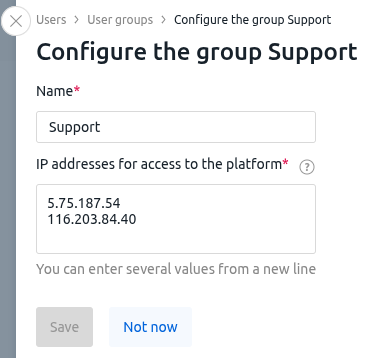
 - If authorization on the platform is only available from specific IP addresses and a separate user has been created for technical support, ensure that they are permitted access from the required IP addresses (for example, 5.75.187.54 and 116.203.84.40). To do this:
- Go to the Users section → User groups tab.
- In the line with the name of the group to which the user belongs, click the
 icon.
icon.
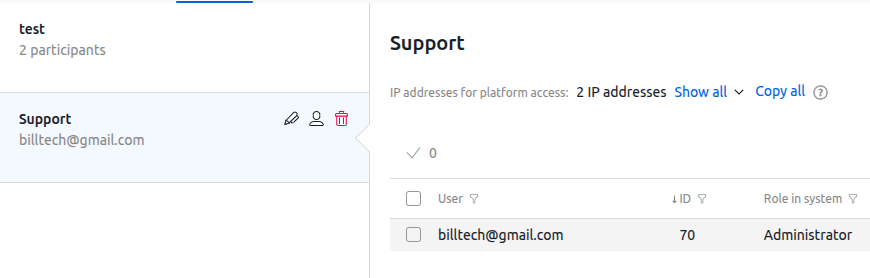
- Ensure that the IP addresses 82.146.36.193 and 116.203.84.40 are specified in IP addresses for access to the platform. If not, add them and click Save.
When you enable this option, the platform will generate an SSL certificate with a validity of seven days. This certificate will be used for the identification of the support employee. The option will be automatically disabled when the certificate expires, and access to the platform will be closed. If necessary, you can disable this option earlier.
If the platform interface is unavailable
If the platform interface is unavailable (for example, due to platform failures), you can manage access via the script from the ISPsystem repository:
- Connect to the server with the platform via SSH.
-
Download the script:
curl -O https://download.ispsystem.com/extras/support_access.sh - Run the script:
-
to open access:
sh support_access.sh enable -
to close access:
sh support_access.sh disable
-
Work logic
When you open access, the platform:
- Adds data from the platform configuration file to the /etc/ssh/sshd_config file.
- Writes the public SSH key of the technical support to the /etc/ssh/ directory.
- Restarts the sshd service.
The cron scheduler keeps track of how long access is open and automatically closes it after seven days.
When you close access, the platform:
- Deletes platform data from the /etc/ssh/sshd_config file.
- Deletes the public SSH key of the technical support in the /etc/ssh/ directory.
- Restarts the sshd service.
Diagnostics
Incoming SSH connections are logged using standard OS tools. To view the connection log, run the command:
journalctl -u ssh